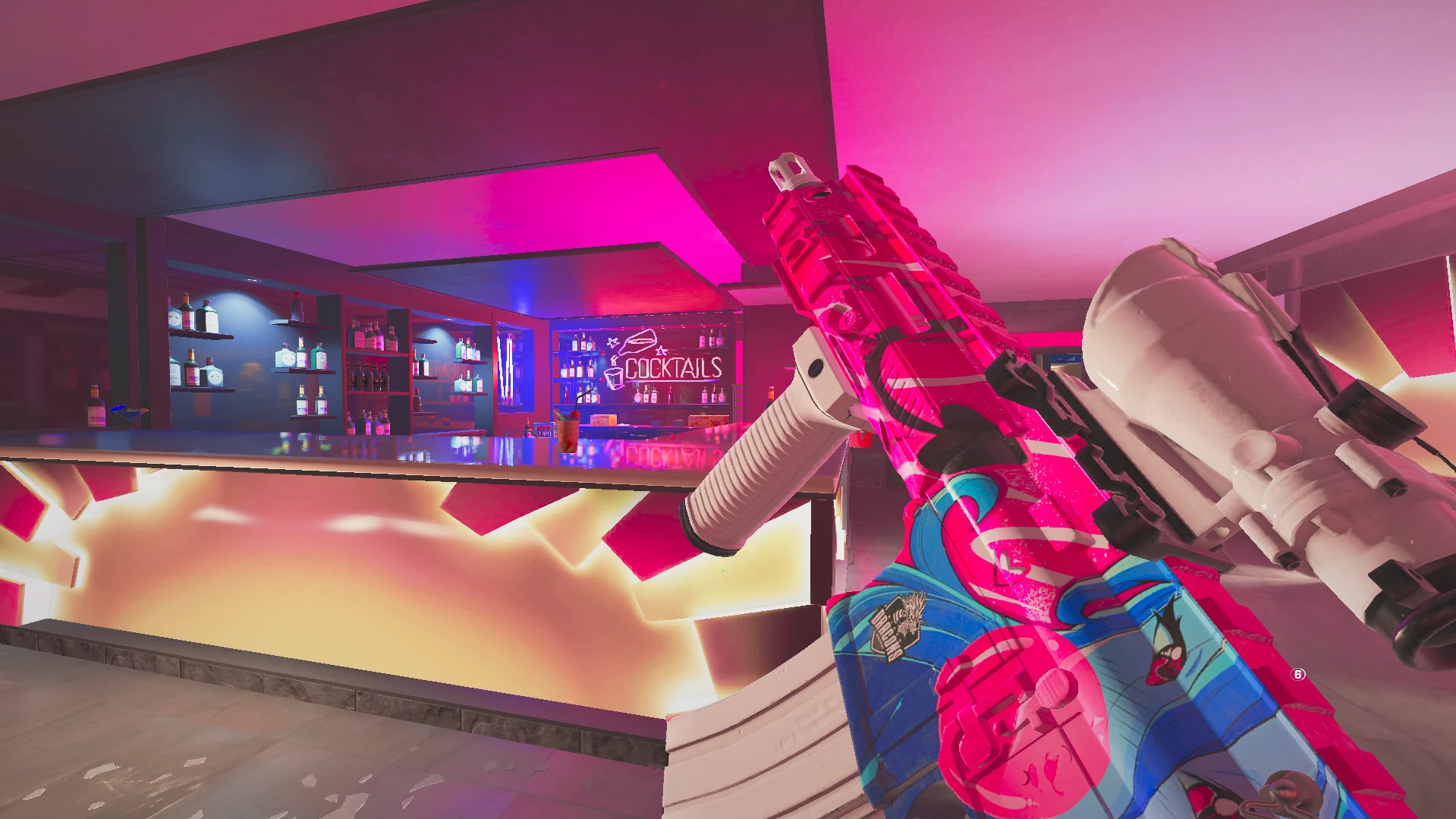
Hold a preset temporarily
Bind a key or mouse button 4 or 5 to your chosen preset. Hold it to apply that look, then release to restore your normal selection. The shortcut is handled by HTNTOOLS and does not consume an in-game button.
WINDOWS DISPLAY CONTROL
Save a display profile for each game, then get your usual desktop back when you switch away.
Download for Windows48-hour free trial · $5 lifetime license for one PC · $4 with direct crypto
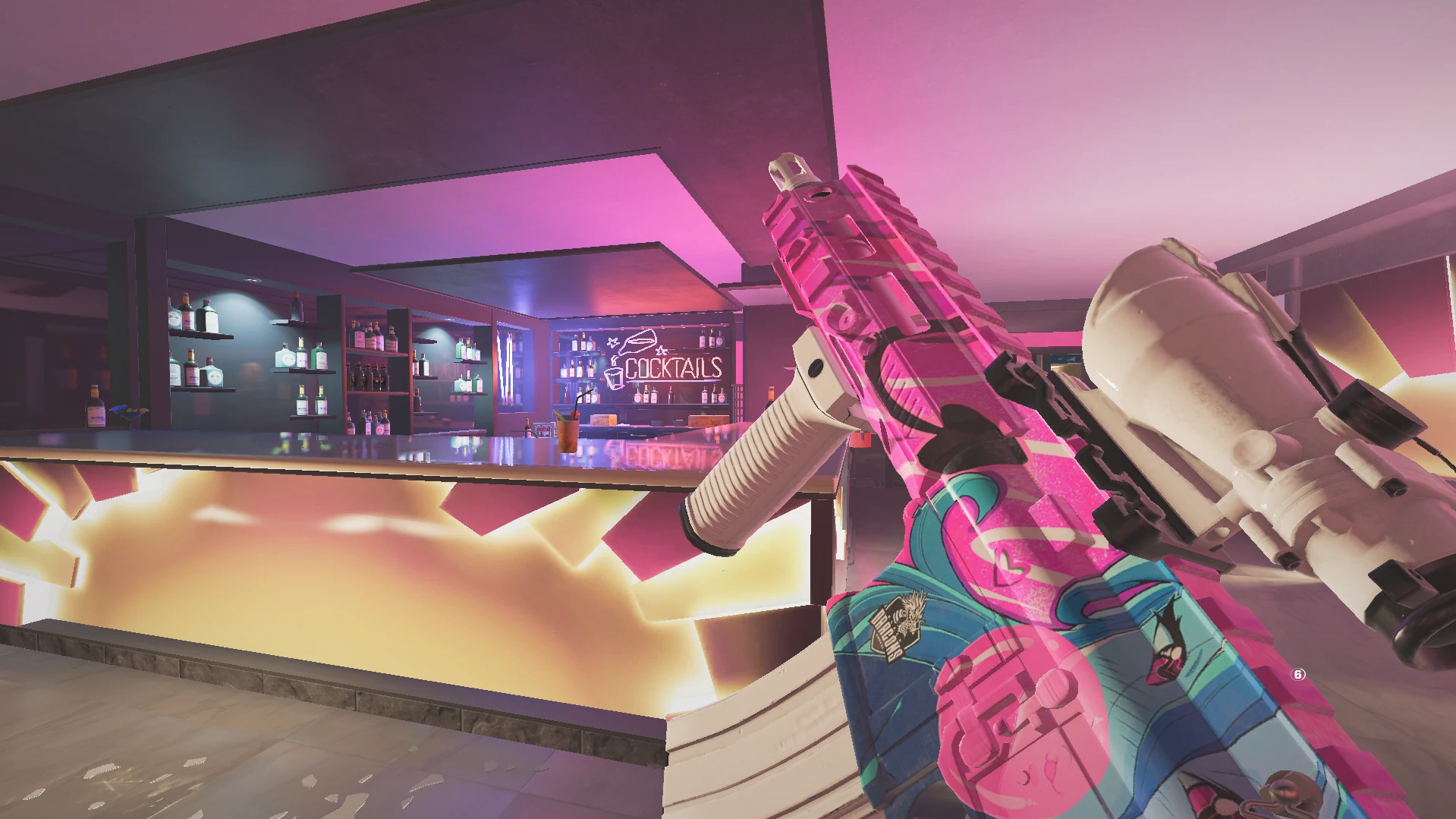
A QUICK WALKTHROUGH
Explore the real controls and matching before-and-after examples. Use the arrows or image markers to browse.
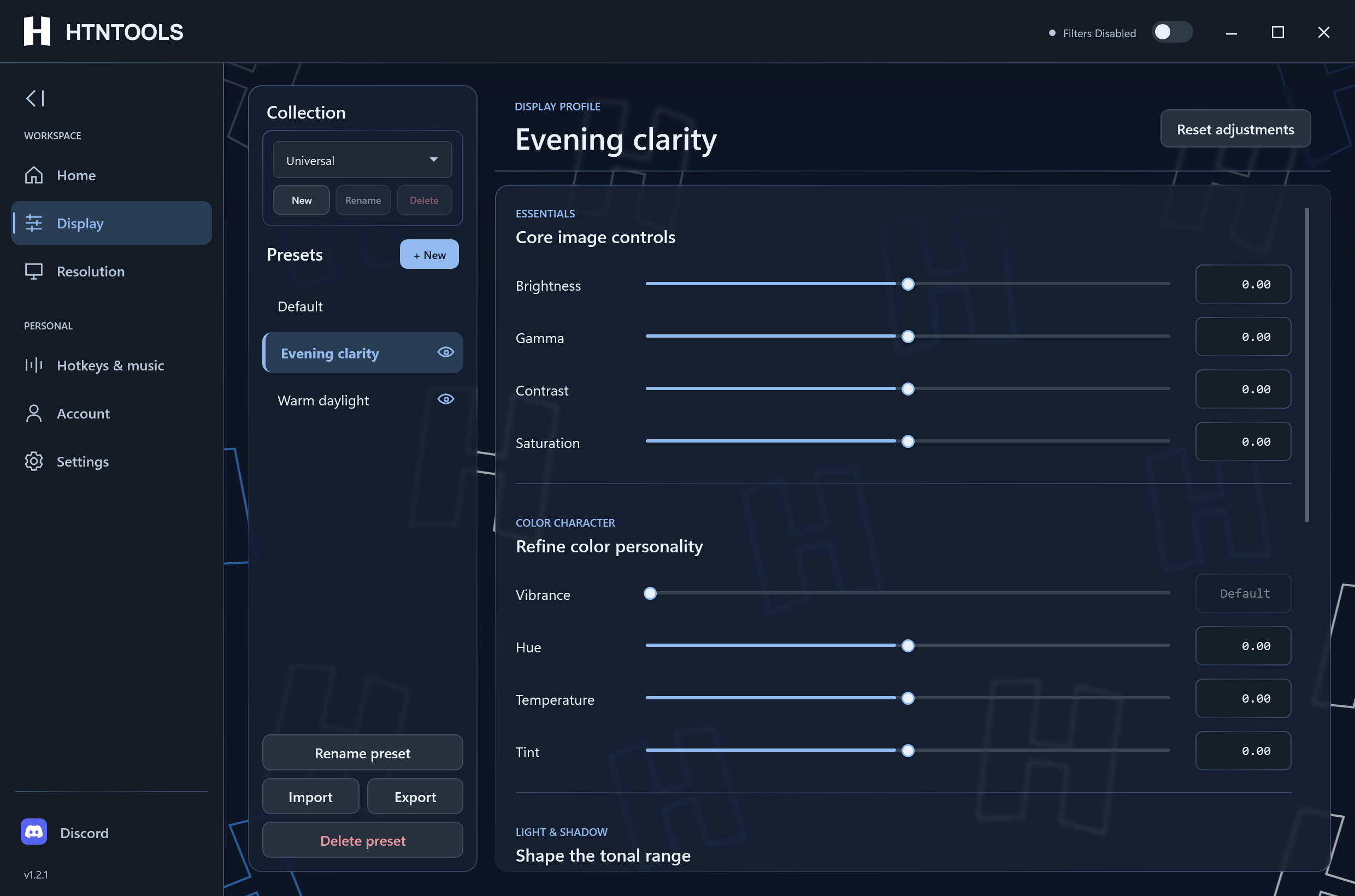
Brightness, gamma, and color controls together in your saved display profile.
When the game loses focus, HTNTOOLS restores your normal Windows display state.
FEATURES TO TRY FIRST
Set up the defaults once, then use a shortcut when the situation changes.
Bind a key or mouse button 4 or 5 to your chosen preset. Hold it to apply that look, then release to restore your normal selection. The shortcut is handled by HTNTOOLS and does not consume an in-game button.
Assign a different binding to move through your saved display profiles. Keep cycling independent from the hold-preset action so each shortcut has one clear job.
Store a display mode as a pair, choose the target monitor, and switch with a quick toggle or shortcut. Keep the modes you use ready without reopening Windows display settings.
Attach a profile to a game. HTNTOOLS applies it when the game takes focus and restores your normal display state when you Alt+Tab away.
Tune vibrance alongside your other display controls, then save the look in a profile. Available controls depend on your display and graphics hardware.
Keep supported clips in 16:9 without re-encoding or creating duplicates. Black bars already recorded into the video remain.
A QUICK COMPARISON
Both approaches use Windows and vendor display controls. HTNTOOLS adds saved profiles and shortcut-driven actions around them.
| Feature | HTNTOOLS | Manual workflow |
|---|---|---|
| Color controls | Included | Available with supported controls |
| Saved game profiles | Included | Not automatic |
| Game focus activation | Included | Not automatic |
| Profile cycling hotkey | Included | Not automatic |
| Hold preset | Included | Not automatic |
| Resolution quick toggle | Included | Not automatic |
| Desktop restore | Included | Not automatic |
Manual workflow means making adjustments yourself in Windows or supported vendor controls. Available color controls vary by display, GPU, and driver.
GET STARTED
Install HTNTOOLS. Download for Windows and open the installer.
Start the 48-hour trial or enter your license key. Activate your access in the app before setting up your display.
Choose a monitor and game. Save your display profile and set the shortcuts you want to use.

READY WHEN YOU ARE